NICEIC Registered
Guides
Home Wi-Fi and mesh explained
Wi-Fi standards and bands in plain English, how mesh compares with extenders and access points, and why a data cable is the biggest upgrade.
Published · Updated · By 2K Electrical Services
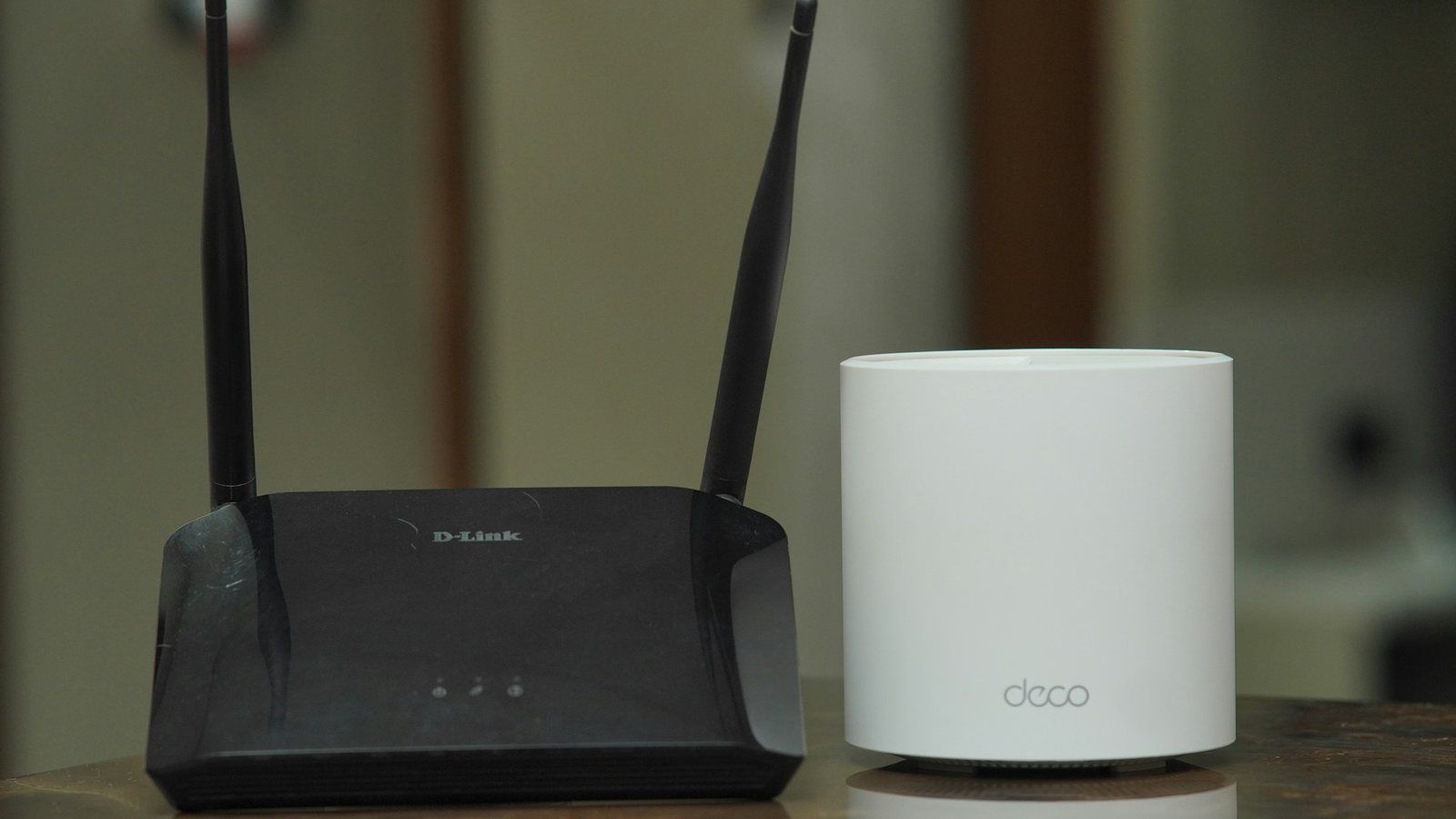
Most complaints about home Wi-Fi are not really about broadband. Full fibre brings a fast connection to the front of the house, but the signal then has to get through brick walls, floors and kitchen units to reach the rooms where you actually use it. This guide explains the Wi-Fi standards and bands, how mesh systems and access points work, and why a few data cables make more difference than any new router.
Wi-Fi standards in plain English
Each generation of Wi-Fi now has a simple number as well as its technical name from the IEEE 802.11 standards:
- Wi-Fi 4 (802.11n) is found in older routers and devices. It works on the 2.4 GHz and 5 GHz bands.
- Wi-Fi 5 (802.11ac) brought much faster speeds on the 5 GHz band and is still common in broadband providers’ routers.
- Wi-Fi 6 (802.11ax) is better at serving many devices at once, which matters in a home full of phones, TVs, speakers and smart plugs. It also helps phones and other battery devices save power.
- Wi-Fi 6E is Wi-Fi 6 extended into the 6 GHz band.
- Wi-Fi 7 (802.11be) adds wider channels on the 6 GHz band and Multi-Link Operation, which lets a device use more than one band at the same time for speed and reliability.
A connection only runs at the standard both ends support. A new router will not turn an old laptop into a Wi-Fi 7 device, although it can still handle a busy network better and reach further than the router it replaces.
The three bands
- 2.4 GHz has the longest range and passes through walls best, but it is the slowest band and the most crowded, especially in terraces and flats where every neighbour’s router is on it too. Many smart plugs, doorbells and cameras only work on 2.4 GHz.
- 5 GHz is much faster with a shorter range. It is the main band for most devices in most homes.
- 6 GHz is only available to Wi-Fi 6E and Wi-Fi 7 devices. It has plenty of clear space and the highest speeds, but it is the weakest through walls and works best in the same room as the router or access point. In the UK it is mainly for indoor use.
Most routers put all the bands under one network name and move each device to the band that suits it. That is usually best left switched on.
What gets in the way in a London home
- Solid brick walls in Victorian and Edwardian houses, especially chimney breasts and the walls between the front and back rooms.
- Extensions and loft conversions, where foil-backed insulation boards and steel beams block the signal far more than a stud wall does.
- Where the router ends up. Full fibre usually comes into the front of the house, so the router sits in the hallway or front room, often in a cupboard or on the floor, as far as possible from the kitchen at the back, the loft bedroom and the garden office.
- Floors and distance. Every wall and floor costs some signal, and the 5 GHz and 6 GHz bands lose more than 2.4 GHz.
Extenders, powerline, mesh and access points
- A Wi-Fi extender plugs into a socket and repeats the router’s signal. It is cheap, but a simple extender has to receive and resend over the same radio, so it loses a large share of the speed, and devices often stay connected to the weaker signal.
- Powerline adapters send data through the mains wiring to another socket. Results vary a lot from house to house, but they can help where nothing else reaches.
- A mesh system uses two or more units that work as one network with one name and hand your devices between them as you move around. The units link to each other either over Wi-Fi (wireless backhaul) or over a network cable (wired backhaul). Better mesh units have a separate radio just for linking to each other, but a wired backhaul is better still: each unit gets the full connection and its radios are left free for your devices. Mesh units generally need to come from the same manufacturer and range.
- Ceiling or wall access points are what offices use, and they now suit homes too. Each flat, discreet unit has its own network cable back to a switch, which also powers it, so there is no plug or power supply at the access point. This gives the best coverage and speed, room by room.
Why a cable is the biggest upgrade
Wi-Fi is at its best over short distances. A network cable to each mesh unit or access point gives every part of the house a strong signal, and a cable straight to the TV, games console or home office desk takes that device off the Wi-Fi altogether.
- Cat6 cable is the usual choice in a house. It runs back to a small patch panel and network switch, often in an under-stairs cupboard next to the router, with a socket for the equipment.
- The best time to run it is during a rewire, a refurbishment, an extension or a loft conversion, when floors are up and walls are open. Data cables are kept apart from mains cables where they share a route.
- Power over Ethernet (PoE) lets one cable carry both data and power to access points, cameras and some doorbells. Amendment 4 to BS 7671, published in 2026, added a new Section 716 with requirements for these installations, covering the power supply and the current each conductor in the cable may carry.
- A garden office can be reached with external-grade cable laid in a duct, or with a point-to-point wireless link between the house and the office.
Getting the most from what you have
- Move the router out of cupboards and off the floor, somewhere central and in the open if the line allows it.
- Change the default admin password and keep the router’s software up to date.
- Use WPA3 security where all your devices support it, and a guest network for visitors and smart home gadgets.
- If a smart device will not pair, it may only support 2.4 GHz. Check its instructions before changing the router settings.
If you are planning a rewire, an extension or a loft conversion, that is the cheapest moment to add data cabling. A few Cat6 runs to the right places will keep working through several generations of Wi-Fi. The same network often carries security cameras too: see Home CCTV: cameras, NVRs and the law.